How to pick the best photo on iPhone from a set of similar shots
Twenty frames of the same pose, the same sunset or the same plate of food, and you need the one that works. Here's how to pick the best photo on iPhone quickly, by hand in the Photos app, or by selecting them and sharing them to Gallery Audit, which picks for you.
Short answer: To pick the best photo on iPhone, open the shots in Photos, swipe between them and zoom in on faces, then heart the winner and delete the rest. Faster: select the shots, tap Share and choose Gallery Audit. It compares just those photos on your iPhone, picks the best and marks the others as extras.
Your partner asks for “just one nice photo” by the water. Twenty frames later you have closed eyes, hair across a face, a stranger walking through the background and, somewhere in the middle, the one that works. The hard part is finding it. To pick the best photo on iPhone you have to compare near-identical frames on a small screen, and that takes longer than taking them.
It isn't only portraits. A shot for Instagram, a sunset that changes every second, a group photo where someone always blinks: any moment worth a second take ends with a stack of similar shots and one decision. This guide covers both ways to make it, by hand in the Photos app, and in a few taps with Gallery Audit.
The screenshots in this guide come from a demo library. Sample photos are AI-generated.
When you end up with twenty shots of one moment
- Portraits of someone you're with. One of you holds the phone, the other poses, and you keep going until the expression is right. The keeper is the sharp one with the best face, not the first or the last.
- Instagram and content shots. Outfit, pose, angle, again. Creators often shoot dozens of takes for one post, and the differences between them are tiny: a hand, a smile, the light.
- Landscapes and sunsets. The light moves and you keep shooting. Some frames come out tilted, some too dark in the shadows, some blown out in the sky.
- Group photos. Retaken until everyone looks at the camera at once.
- Kids, pets and food. Moving subjects mean motion blur, and a plate of food gets shot from every angle before anyone eats.
Each of those extra frames is a full-size photo. Across a year they add up to thousands of near-copies, so picking the keeper and clearing the rest right away saves space as well as time.
How to pick the best photo in the Photos app
The built-in way works for any set of shots, and it's free:
- Open the first shot and swipe through the set. Look at the whole frame first: framing, background, the moment itself. Rule out the obvious misses.
- Zoom in on what matters. Pinch to zoom on eyes and faces in a portrait, on the subject in a product or food shot, and on the horizon in a landscape. A photo that looks sharp at full screen can be soft up close.
- Heart the winner. Tap the heart so the shot you chose lands in Favorites and is easy to find again.
- Delete the rest. Tap Select, pick the other frames and tap the trash button. They go to Recently Deleted, where you can recover them for 30 days (if your iCloud storage is full, iOS deletes them right away).
Bursts get a little help. Open a burst and tap Burst (or Select), and gray dots under the thumbnails mark the frames iPhone suggests keeping, as Apple's burst guide describes. For separate photos of the same moment, there's no suggestion: comparing them is up to you.
How to share photos to Gallery Audit and let it pick
Gallery Audit is an iPhone app that finds similar shots and picks the best one. Most of the time you'd run it on a date range of your library, but for a handful of takes there's a shortcut: it comes with a share extension, so it appears in the row of apps in the Photos app's Share menu. You select the photos you're choosing between and share them to Gallery Audit. It isn't on the App Store yet (it's coming soon), but here's how it works.
- Select the shots in the Photos app. Tap Select in the top corner, then tap each shot of the moment, whether that's eight portraits or thirty takes of an outfit.
- Tap the Share button. It's the square with an arrow pointing up, in the bottom-left corner.
- Choose Gallery Audit. It's in the row of apps; scroll the row or tap More if you don't see it. Gallery Audit opens and audits only the photos you shared, right on your iPhone.
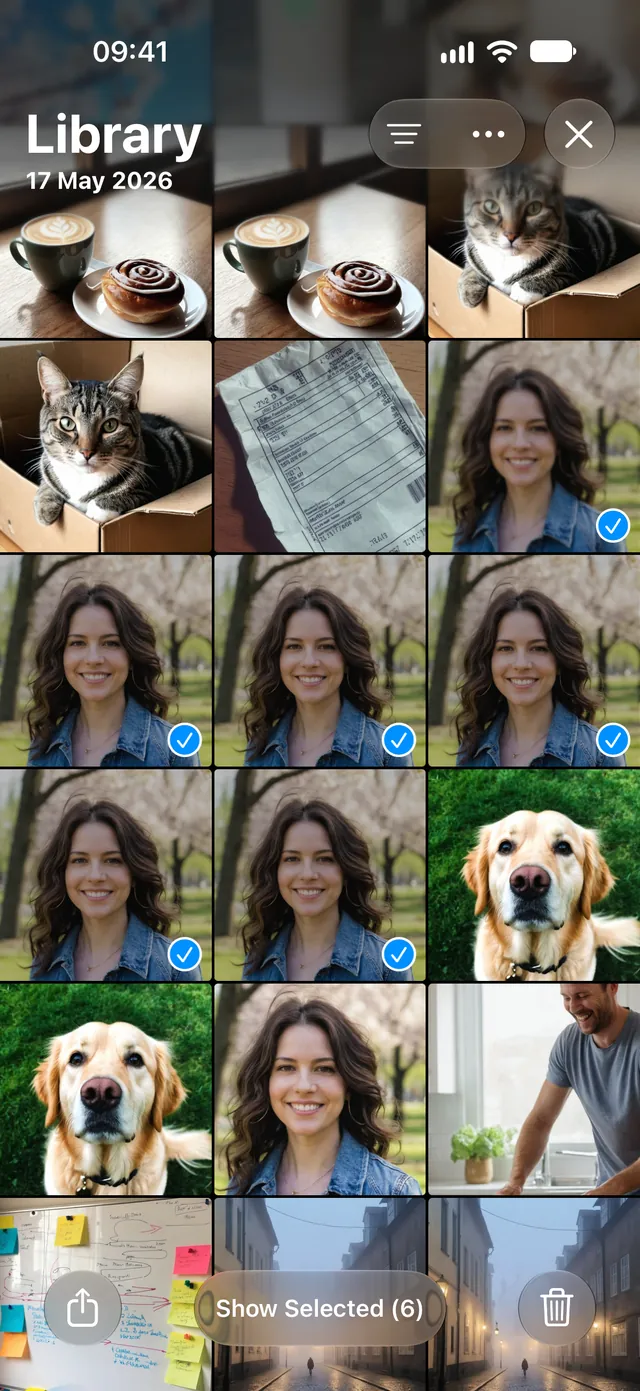
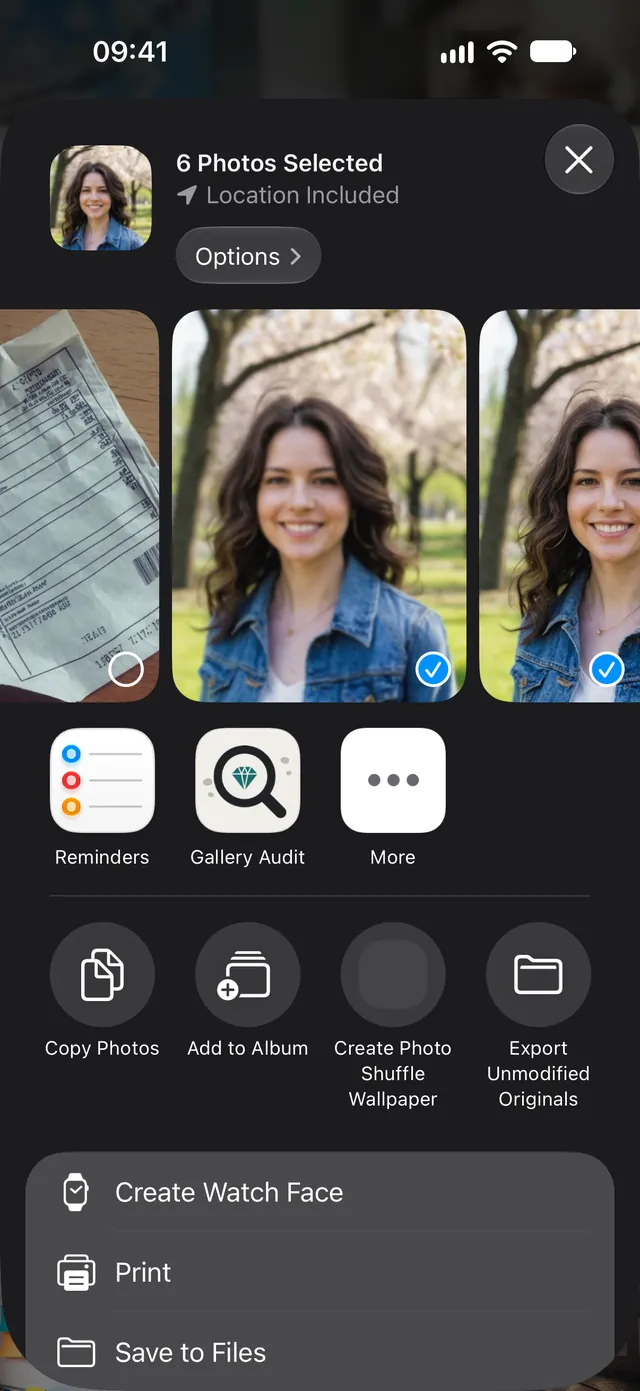
- Similar shots are grouped. Shots of the same moment, taken minutes apart in the same place, are grouped, and shots of different people are kept apart, so a portrait of your partner isn't judged against a selfie of you both. Anything else in the set is rated on its own.
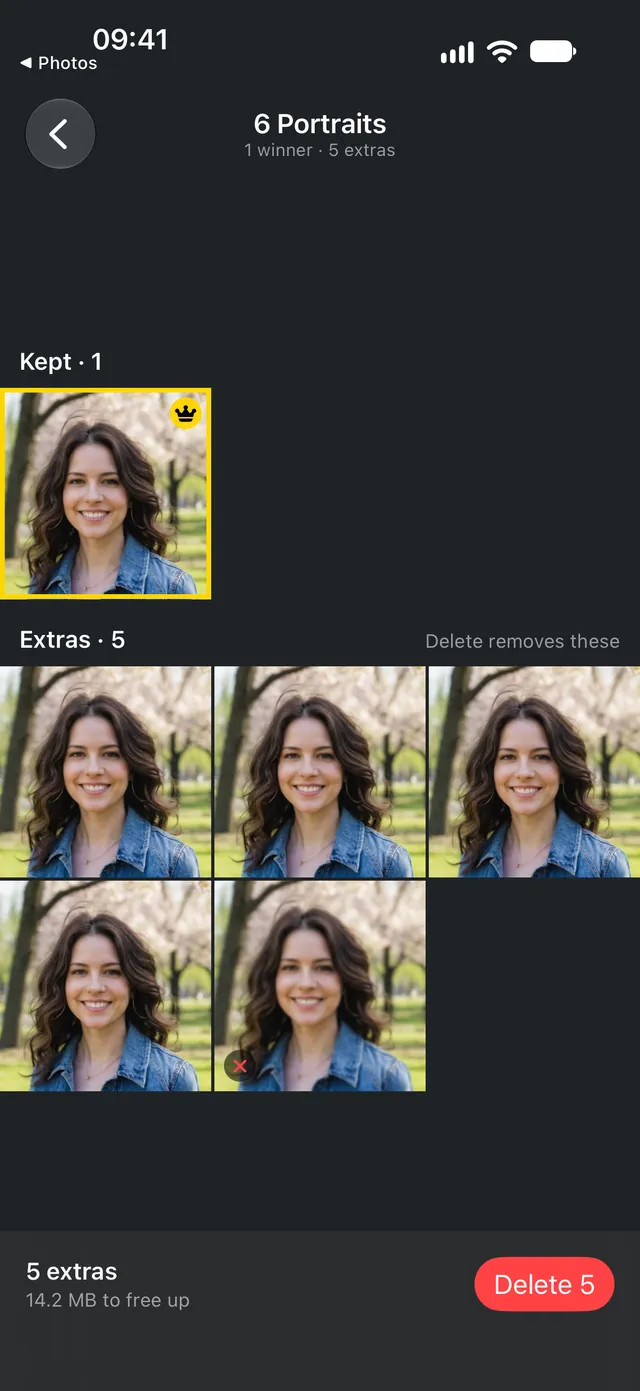
- The best shot is picked. Each group keeps its best shot (two or three in a big set), and the rest become extras. Every photo gets a verdict, Keeper, Mid or Discard, with the reason spelled out.
- Check it and clear the rest. Open the group to see what's kept. Tap the heart on a different shot if you prefer it, then delete the extras and confirm.
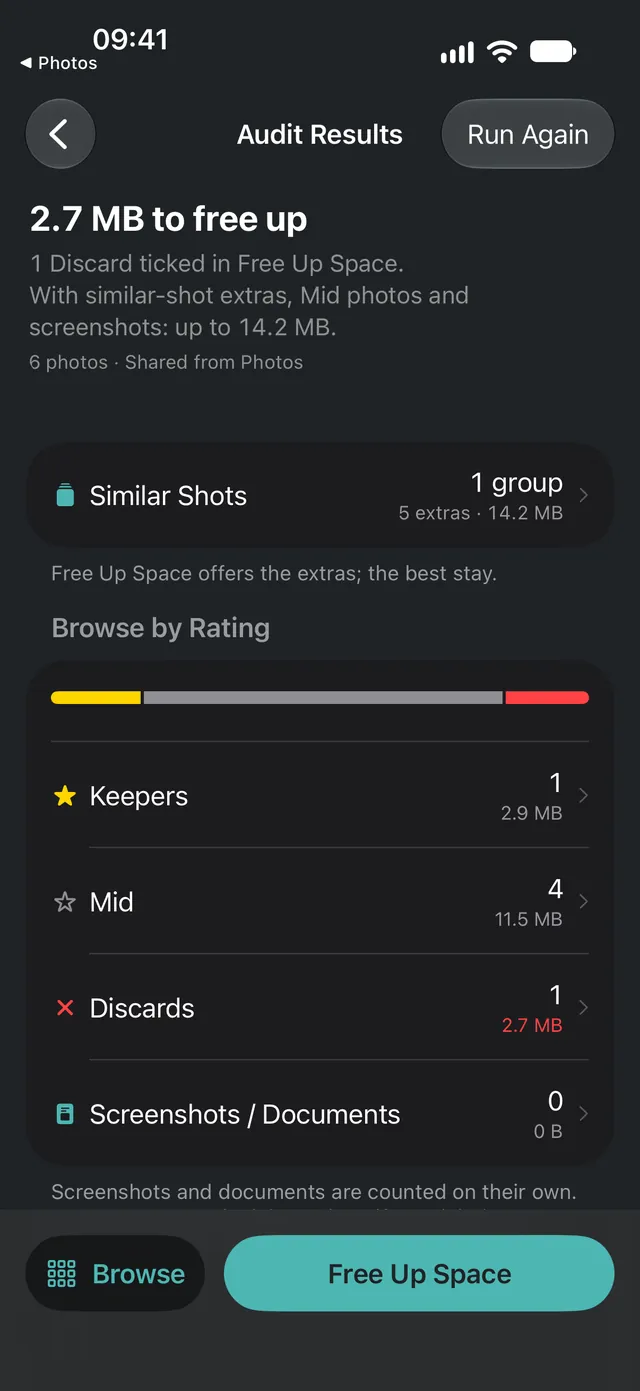
What makes one shot beat another
A good portrait and a good landscape fail in different ways, so Gallery Audit first works out what kind of photo it's looking at: a selfie, portrait, group shot, close-up or landscape. Then it judges each one on what matters for that kind of shot.
- Portraits and Instagram shots. Sharpness is measured on the person, not the whole frame, so a Portrait mode background blur doesn't count against the photo. How well the face came out counts too.
- Group photos. The main faces in the frame are checked, so the take where they came out best has the edge.
- Landscapes and sunsets. Exposure in the shadows and the sky, composition and a level horizon.
- Every shot. Blur, exposure and lens smudges, the haze you get from a fingerprint on the camera, plus Apple's on-device aesthetics model for overall appeal.
Then it compares each shot with the others from the same moment. The winner is the one that comes out ahead, and you can see why.
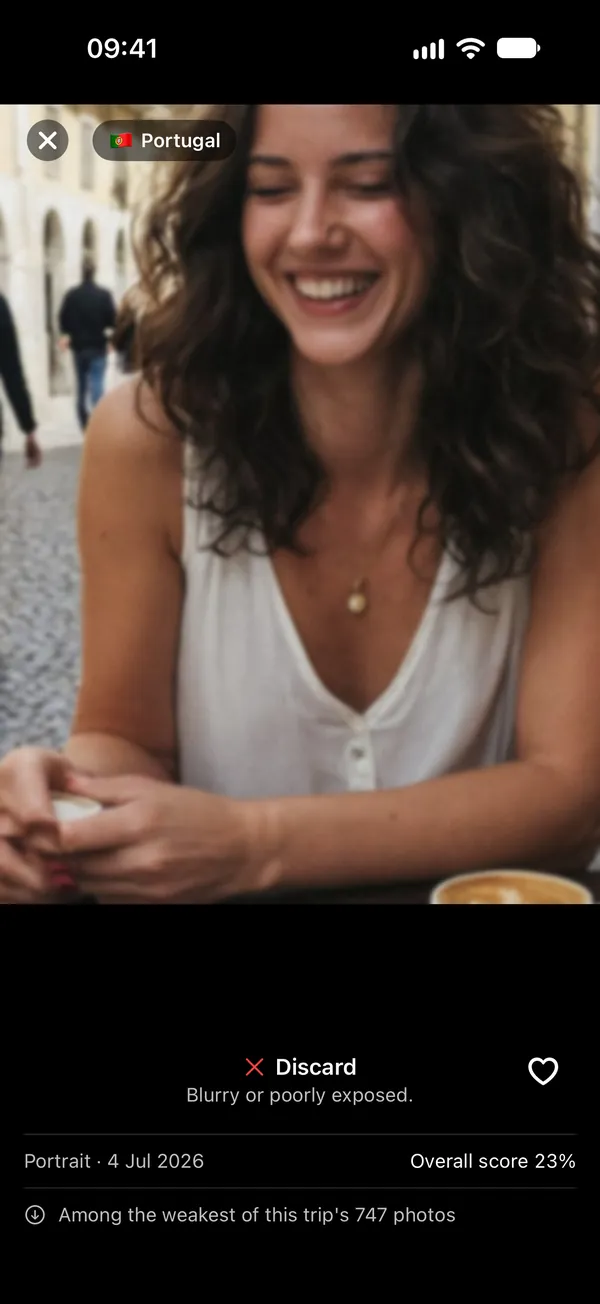
Not sure about its pick? Check it
Taste is personal, and sometimes you'll prefer a different shot than the one it picked. Every photo comes with a reason, and you can check the call before anything is deleted:
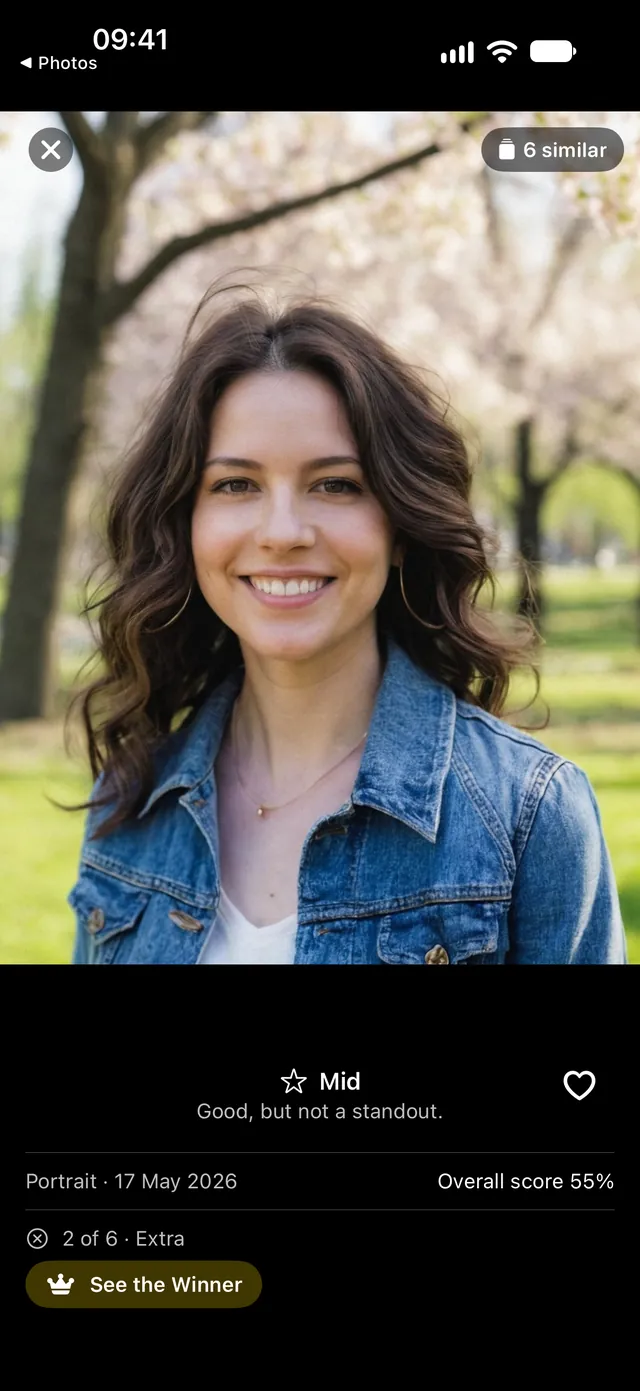
- See the Winner. On any extra, one tap shows the shot it lost to, so you can compare the two.
- Double-tap to zoom. It zooms to full size around the spot you tap and stays there, so you can pan across the eyes or the subject and check for blur yourself.
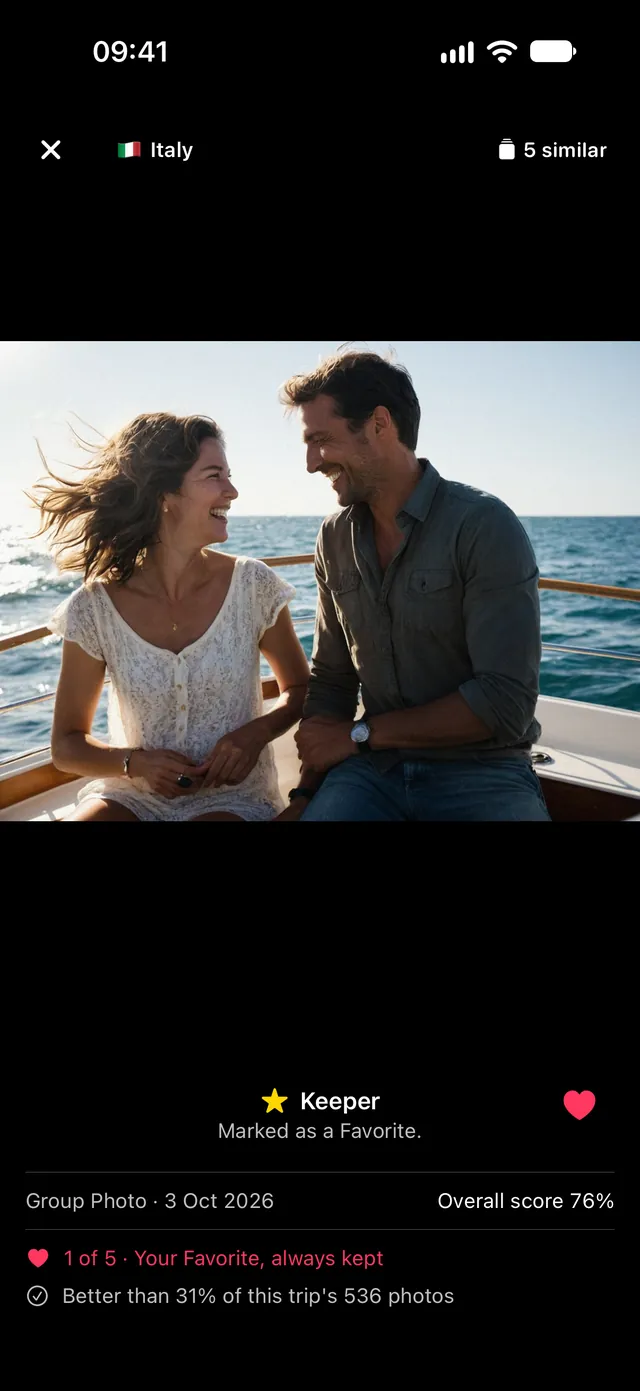
- Your Favorites win. Any photo you've hearted in Photos is always kept, whatever its score.
Tips for fewer, better takes
- Wipe the lens first. A fingerprint softens every frame you take after it.
- Tap to focus on the face. Then hold to lock focus and exposure, so the next frames don't drift.
- Use burst for movement. Kids, pets and jumps: one burst is easier to sort than twenty separate taps.
- Pick right after you shoot. Choosing while you still remember the moment is faster than sorting a month later. After a trip, it's easier to save the best photos from the trip into an album and clear the rest in one go.
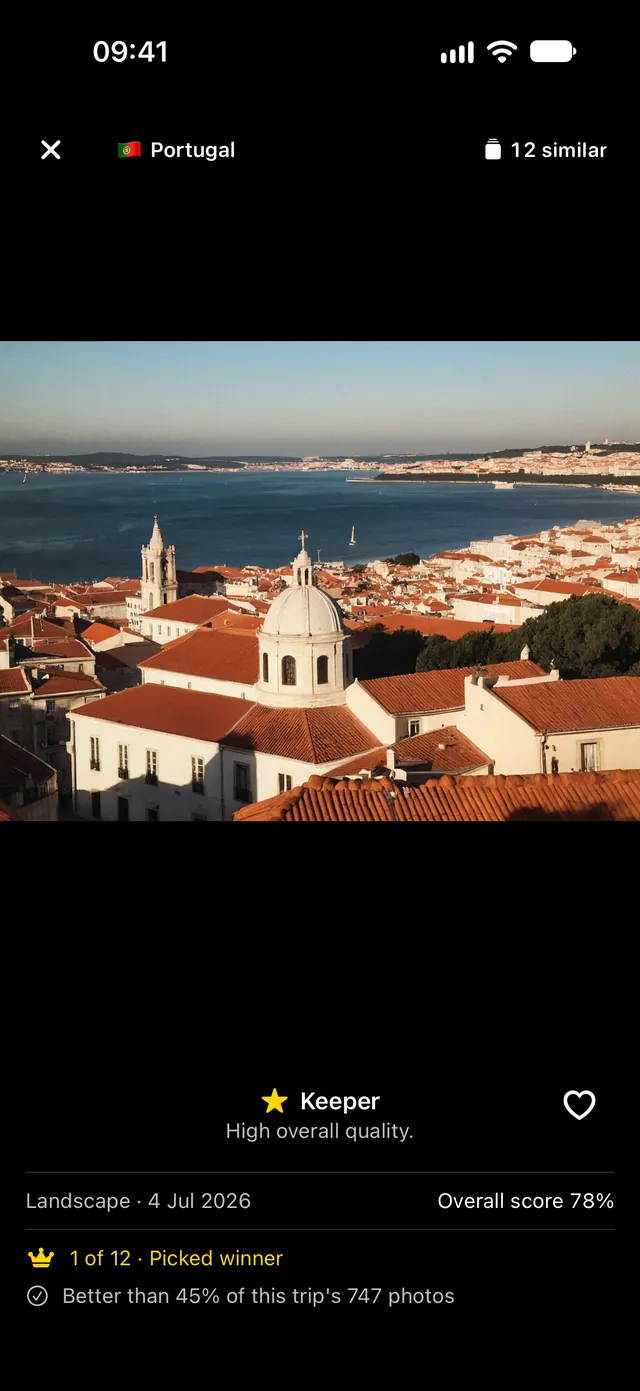
A dozen extras here and there is how iPhone storage fills up with photos. Next, the same idea across your whole camera roll: how to find every set of similar photos and keep the best one.
Questions, answered
Does iPhone pick the best photo automatically?
Only for bursts: when you open a burst and tap Burst (or Select), gray dots mark the frames iPhone suggests keeping. For separate photos of the same moment, Photos doesn't choose. Gallery Audit compares them and picks the best for you.
How do I compare a few photos without auditing my whole library?
Select them in the Photos app, tap Share and choose Gallery Audit. It audits only those photos: it groups the look-alikes, rates each one and shows which one wins and which are extras. Nothing leaves your iPhone.
Will it mark a Portrait mode photo as blurry?
No. Gallery Audit measures sharpness on the subject, not the whole frame, so the soft background of a Portrait mode photo doesn't count against it.
What if I prefer a different shot than the one it picked?
Tap the heart on the one you like. Favorites are always kept, whatever their score, and nothing is deleted until you confirm.
Are my photos uploaded to compare them?
No. All the analysis runs on your iPhone. There's no account, and your photos never leave your phone.
Keep reading
How to delete similar photos on iPhone, and keep the best one
Delete similar photos on iPhone without checking each one. Find bursts and look-alike shots, keep the best of every moment and clear the rest.
iPhone storage full? How to free up space from your photos
iPhone storage full of photos? See what's using the space, clear blurry shots and near-duplicates in one go, and decide what stays before anything goes.
How to save the best photos from a trip into an iPhone album
747 photos from one trip? How to find the best trip photos on iPhone, trim the weak shots and save the highlights as an album in Photos.