iPhone storage full? How to free up space from your photos
Storage full. Again? Photos are usually the biggest thing on an iPhone. Here's how to see which ones are worth keeping, clear the rest in one batch, and get the space back while your best shots stay put.
Short answer: If your iPhone storage is full of photos, delete what you don't need, such as blurry shots, near-duplicates, screenshots and large videos, then empty Recently Deleted (under Utilities in Photos): deleted photos usually stay there for 30 days, still using space. Gallery Audit shows how much space each group would free before you delete anything.
The “iPhone Storage Full” warning always arrives at the worst moment: halfway through a trip, or right before an update. Open Settings → General → iPhone Storage and photos are usually at the top. If your iPhone storage is full of photos, deleting a few at random barely helps, and deleting in bulk feels risky.
This guide shows how to find what's actually worth deleting, see exactly how much space you'll get back, and decide what stays before anything is deleted.
Why photos take up so much space on iPhone
A single photo from a recent iPhone takes several megabytes, and we take a lot of them: bursts, retakes, “one more just in case”, plus screenshots, receipts and photos of documents. In the demo library we use for the screenshots below, a single year came to 5,009 photos.
Only 2,963 of them were Keepers. The rest were 1,023 “fine but unremarkable” pictures nobody will scroll back to, 388 Discards (blurry or badly exposed shots, or near-copies of a better photo) and 635 screenshots and documents.
The usual fixes, and what they miss
- Optimize iPhone Storage. With iCloud Photos on, this keeps smaller versions on your phone and the full-size originals in iCloud. It frees space on the iPhone, but nothing leaves your library, so your iCloud storage keeps filling up.
- Deleting by hand. It works, but going through thousands of photos one by one takes hours, and picking the best of a dozen near-identical shots on a small screen is hard.
- The Duplicates album. Photos can merge exact copies, but different frames of the same moment don't count as duplicates, so they stay. Our guide on how to delete similar photos on iPhone covers that gap.
How to free up space on iPhone with Gallery Audit
Gallery Audit is a photo cleaner app for iPhone that rates every photo for you, as Keeper, Mid or Discard, and then lets you choose what to clear with the space you'll get back shown up front. It isn't on the App Store yet (it's coming soon), but here's how it works.
- Audit a date range. Last Year is a good place to start. The app scans it right on your iPhone, and the screen stays on until it's done.
- See where the space goes. Audit Results shows how many Keepers, Mid and Discard photos you have, with the size of each, plus screenshots and documents counted separately.
- Open Free Up Space. It gathers everything worth clearing into four groups: Discards (ticked for you), screenshots and documents, extras from similar shots, and Mid photos.
- Tick what to clear. Each group shows what it adds on top of what's already ticked, so a photo in two groups is only counted once. Then confirm. The free version deletes up to 50 at a time (50 to start, then 20 more each day), and Gallery Audit Pro clears as many as you tick.
If iCloud Photos is on, deleting a photo on your iPhone also removes it from iCloud and your other devices, and from everyone's library if it's in a Shared Library. That's what frees iCloud storage too, so it's worth knowing before a big clean-up.
The screenshots in this guide come from a demo library. Sample photos are AI-generated.
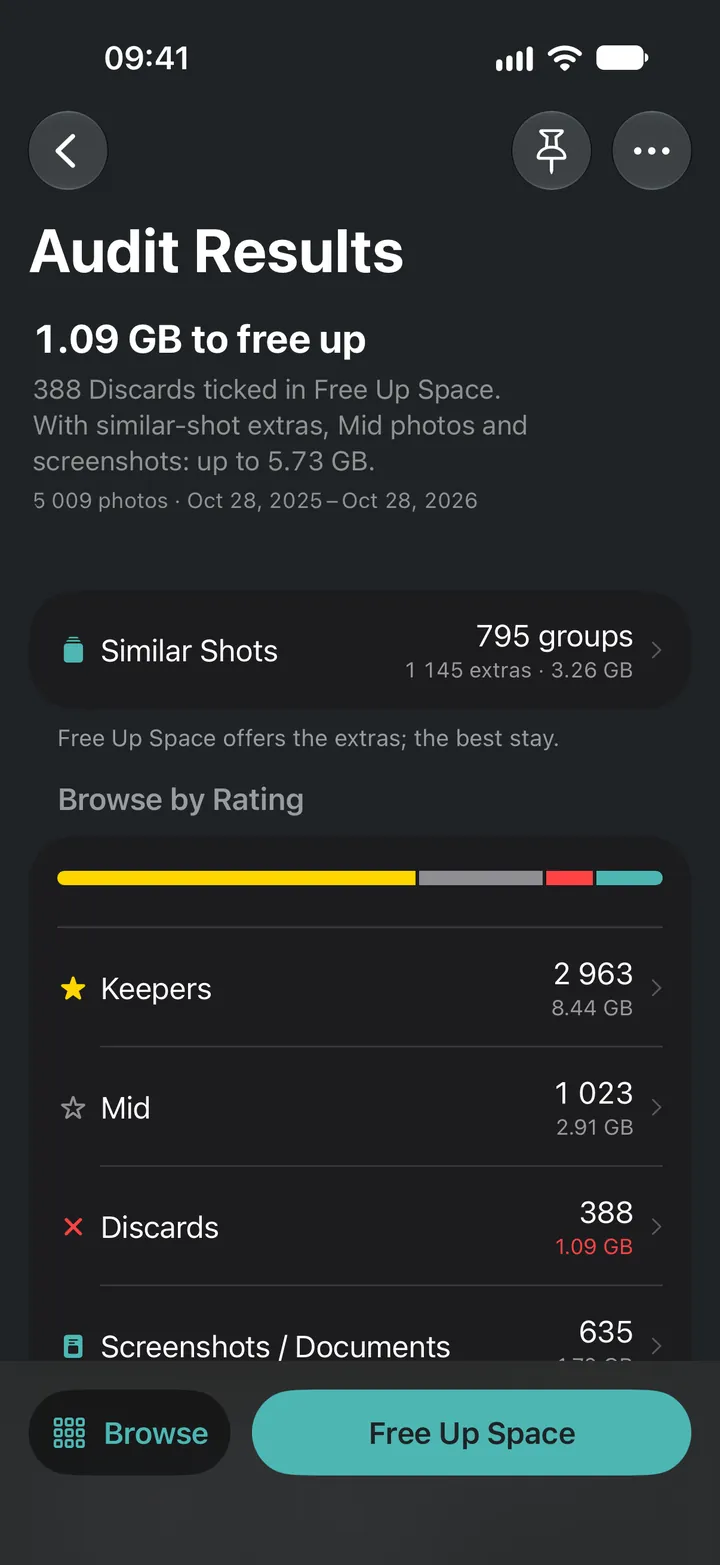
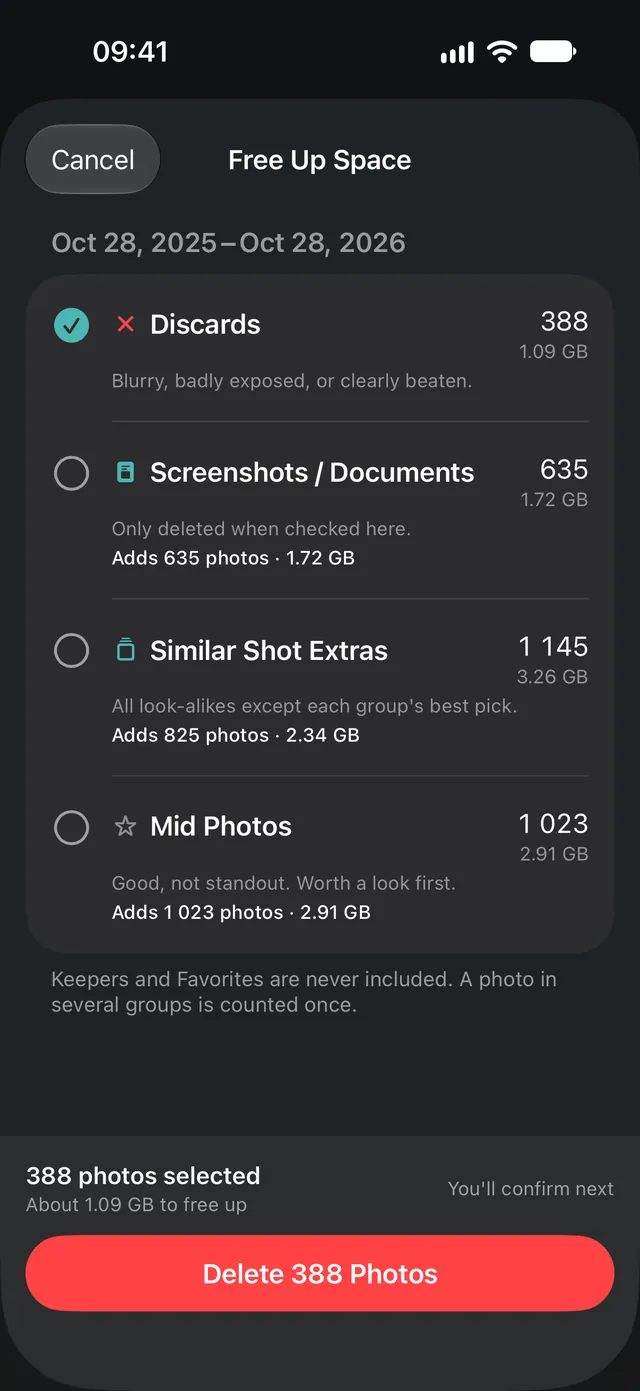
Here's how that played out in the example library:
- Discards only (388 photos)
- 1.09 GB
- Similar-shot extras add
- +2.34 GB
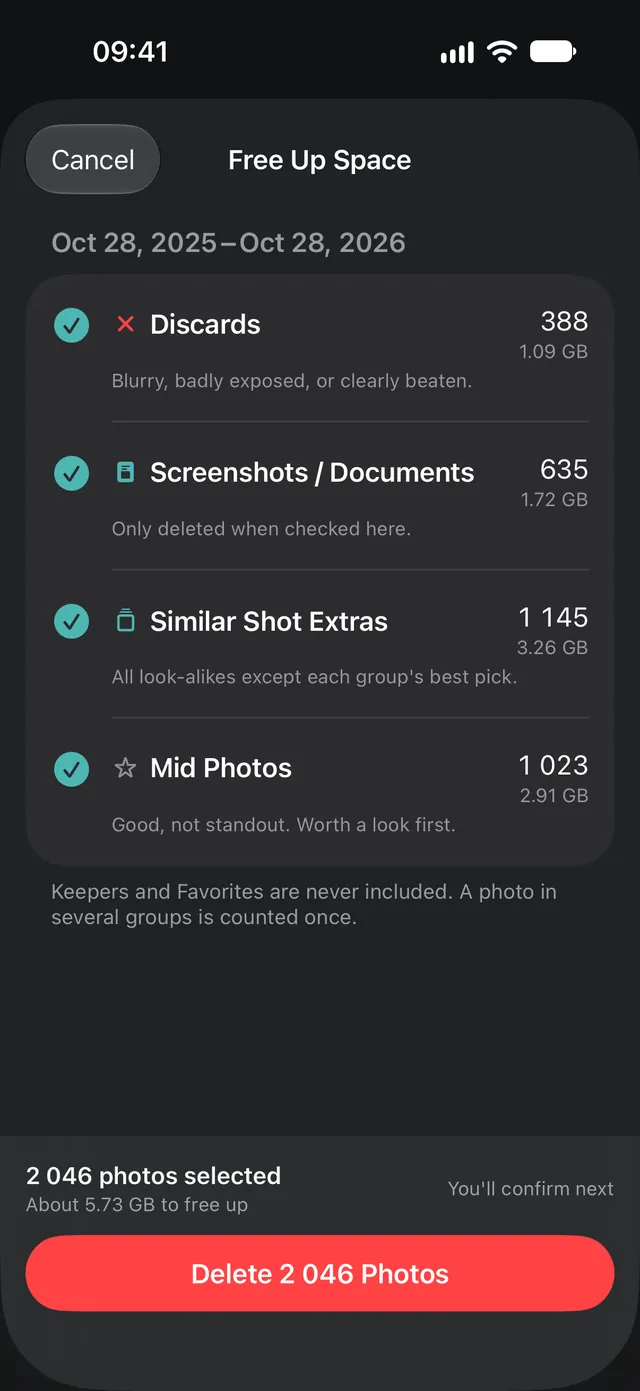
- All four groups (2,046 photos)
- 5.73 GB
- Keepers left untouched
- 2,963
Why isn't it the four groups added together? The groups overlap. An extra is never a Keeper, so every extra that isn't a Discard is rated Mid, and Free Up Space counts each photo once. Ticking all four comes to the 388 Discards, the 635 screenshots and documents, and the 1,023 Mid photos. It's also why the extras only add 825 photos with Discards ticked, fewer than the 1,145 extras in the Similar Shot Extras group: extras that are already Discards aren't counted twice.
Just back from a holiday? Select a trip first and Free Up Space only covers that trip's photos. Better still, save the trip's best photos as an album before you trim the rest.
What to clear first, and what's never included
A photo is only rated Discard for a clear reason: it's badly blurred or exposed, a clearly better shot of the same moment exists, or it's one of a trip's weakest shots, clearly below the rest of it. A low score for looks alone never marks a photo Discard. You can tap any photo to see its reason.
- Start with Discards. They're the clear cases, which is why they're ticked by default.
- Add screenshots and documents if you don't need them. They're never rated Mid or Discard, so they're only cleared when you tick them.
- Add similar-shot extras when you're happy with the picks. In the example library, they added 2.34 GB on top of the Discards.
- Add Mid photos only if you want to keep just your best. With everything else ticked, this leaves only your Keepers.
- Keepers and Favorites are never included. Any photo you've hearted in Photos is always a Keeper.
Don't forget your videos
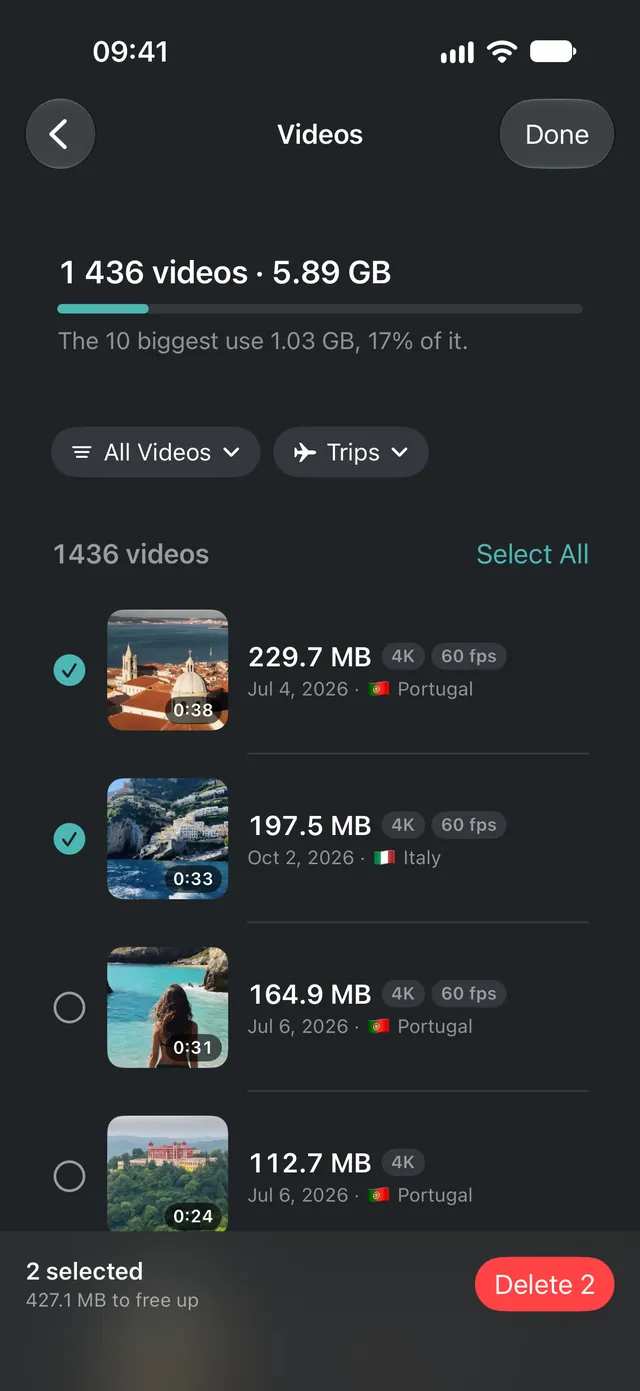
Videos aren't rated and are never part of Free Up Space, but they are often the biggest thing in a camera roll. In the example library, 1,436 videos used 5.89 GB, and the 10 biggest of them 1.02 GB. Audit Results lists them in a Videos screen, largest first by default (or newest first), with filters for screen recordings, short and long clips, slo-mo, 4K, time-lapse and Cinematic, and for trips. Play any of them, select several and delete them together after a confirmation. Favorites can't be selected.
Get the space back: empty Recently Deleted
Deleted photos go to Recently Deleted in the Photos app, where they usually stay for 30 days in case you change your mind (if your iCloud storage is full, iOS deletes them right away). Until then they still take space on your iPhone, though Apple says they don't count towards iCloud storage. Once you've checked everything, open Photos, tap Collections, open Recently Deleted under Utilities, tap Select, then the More button and Delete All to free the space straight away.
Next: holidays. Here's how to save the best photos from a trip into an iPhone album, so the highlights stay together before you trim the rest.
Questions, answered
Why is my iPhone storage still full after deleting photos?
Deleted photos usually move to the Recently Deleted album in Photos for 30 days, so you can change your mind; they still take space on your iPhone there, though Apple says they don't count towards iCloud storage. If your iCloud storage is full, iOS deletes them right away instead. To get the space back straight away, open Recently Deleted (under Utilities) and delete them from there.
Does deleting photos on iPhone delete them from iCloud?
If iCloud Photos is on, yes. Your library is kept in sync, so a photo you delete on your iPhone is also removed from iCloud and your other devices. That's also what frees up iCloud storage.
Can Gallery Audit delete my favorite photos?
No. Any photo you've marked as a Favorite in Photos is always rated Keeper, and Keepers are never included in Free Up Space.
How much space can I free up?
It depends on how you shoot. In the demo library of 5,009 photos from a single year, the Discards alone came to 1.09 GB, and ticking all four Free Up Space groups came to about 5.73 GB while keeping all 2,963 Keepers.
Keep reading
How to save the best photos from a trip into an iPhone album
747 photos from one trip? How to find the best trip photos on iPhone, trim the weak shots and save the highlights as an album in Photos.
How to pick the best photo on iPhone from a set of similar shots
Took 20 shots to get one good one? How to pick the best photo on iPhone fast, from portraits and Instagram shots to landscapes, and clear the rest.
How to delete similar photos on iPhone, and keep the best one
Delete similar photos on iPhone without checking each one. Find bursts and look-alike shots, keep the best of every moment and clear the rest.