How to save the best photos from a trip into an iPhone album
747 photos from one trip. Which ones are worth keeping? Here's how to find a trip's best shots, trim the rest and save the highlights as an album in Photos, in minutes instead of an evening.
Short answer: To save your best trip photos on iPhone, add them to a new album in Photos. An album only points to photos already in your library, so it takes no extra space. Gallery Audit does the picking: it finds your trips, rates every photo and, with Pro, saves a trip's Keepers as an album, already named, like “Best of Portugal 2026”.
Holidays are where camera rolls explode. A week in Portugal came to 747 photos in the demo library we scanned: the same Lisbon viewpoint twelve times over, trams and cafés shot again and again, blurry shots in between. You want the best of it in one album. You don't want to scroll through all 747 to build it.
Here's how to find the best trip photos on iPhone, save them as an album in the Photos app, and optionally trim the rest.
- Photos from one trip
- 747
- Keepers found
- 600
- Trips found in the library
- 6
- Days away
- 8
Why trip photos are so hard to sort
On a trip you shoot more, and you shoot the same things more often. Every viewpoint gets a burst, every group photo gets retaken, and the good shots end up buried between screenshots of boarding passes and blurry photos from a moving train. Multi-country trips make it harder still, because the photos don't fall into one neat place.
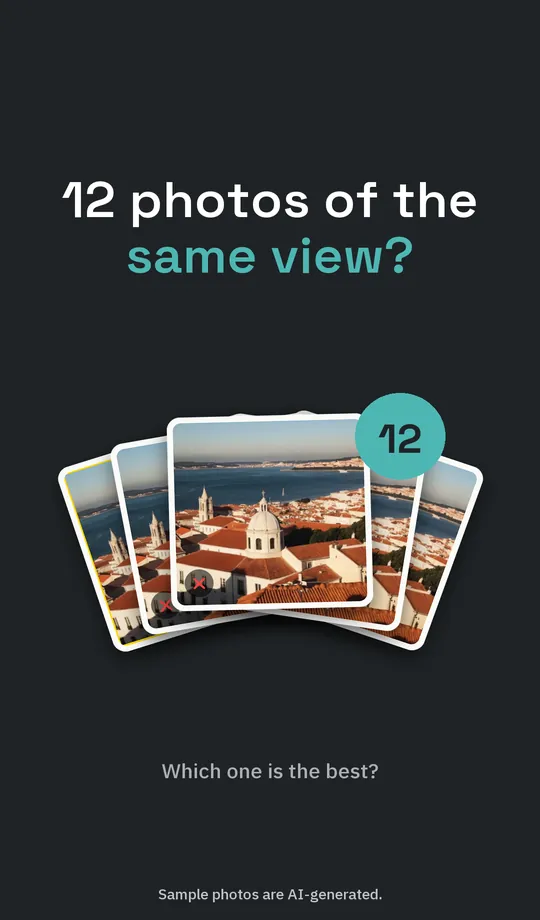
In the same library, a single viewpoint produced 12 near-identical shots. Gallery Audit picks the best two of a group that size, plus any you've hearted. Here's how it picks the best of similar photos.
What the Photos app already does for trips
Recent versions of Photos group your trips and turn them into Memories, which are great for looking back. But they don't tell you which of 747 photos are worth keeping, and building an album of the best still means picking photos one by one.
How to find a trip's best photos with Gallery Audit
Gallery Audit is an iPhone photo cleaner that finds your trips, rates the photos in them and builds the album for you. It isn't on the App Store yet (it's coming soon), but here's the whole flow.
- Audit a range that includes the trip. Pick Last Year, drag across the timeline to cover the trip, or tap the trip's flag under the timeline to pick just its days. If you drag, include some time at home too: Gallery Audit treats the area where you took photos on the most days as home.
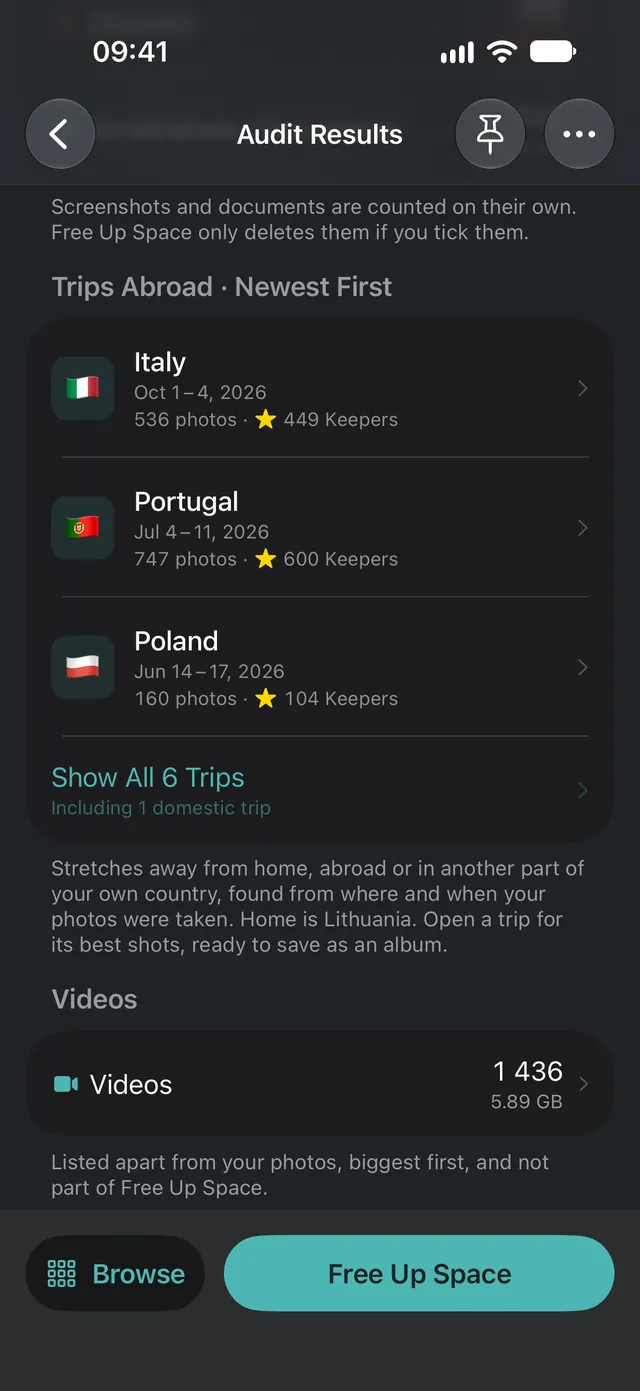
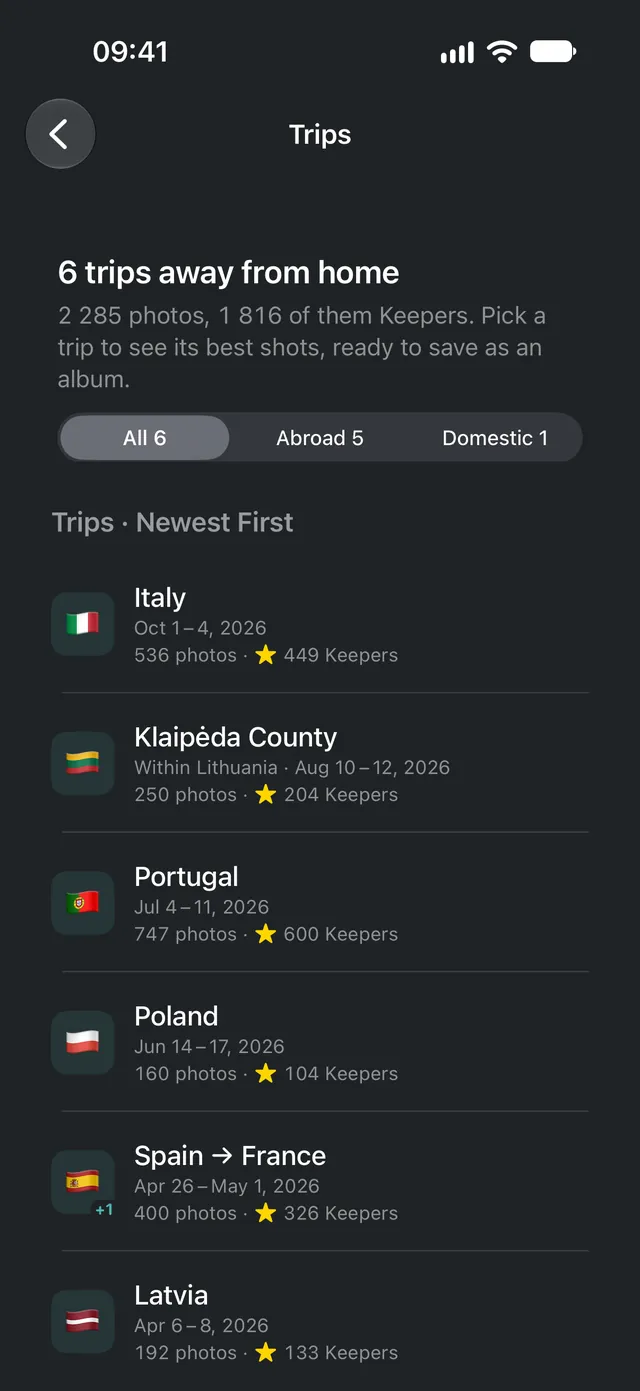
- Your trips are found for you. Every stretch away from home becomes a trip, even across borders, like Spain → France. A few days in another region of your own country count too, as a domestic trip. Countries and regions are worked out on your iPhone, and each trip shows its dates, photo count and Keepers.
- Every photo is rated. Each shot gets a verdict: Keeper, Mid or Discard. Within each trip, photos in the weakest 20% that are clearly worse than the trip's typical shot are marked Discard, so a trip full of good shots loses fewer. Portugal's 747 photos ended up with 95 Discards.
- Tap a trip to see its Keepers. The Trips page lists every trip with its Keepers count. Tap one and you land on that trip's best shots.
- Tap Create Album. The album is already named for you, like “Best of Portugal 2026”. Change it if you like, then tap Create. Create Album is part of Gallery Audit Pro.
The screenshots in this guide come from a demo library. Sample photos are AI-generated.
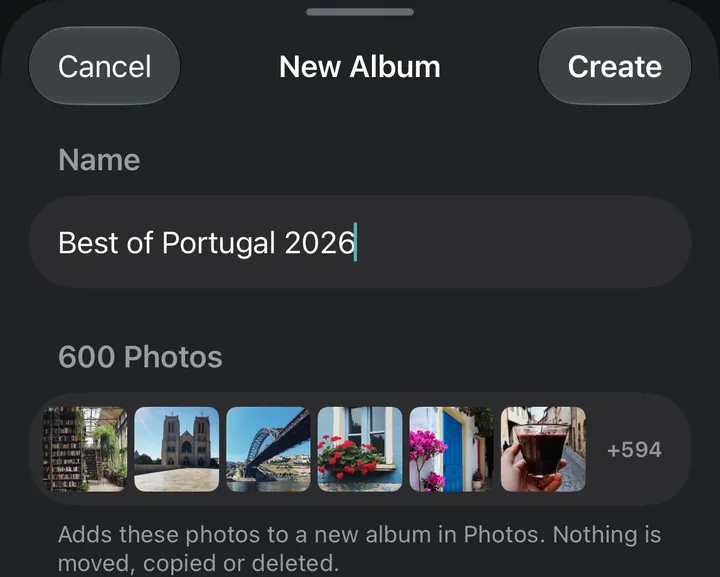
Creating an album doesn't copy anything. The album only points to photos already in your library, so it takes no extra space, and deleting it later doesn't delete its photos.
Trim the rest of the trip (optional)
Once the best shots are in their album, you can clear the weak ones. Keepers are never part of Free Up Space, so the album's photos stay. With a trip selected, Free Up Space only covers that trip, so it never touches photos from anywhere else. Similar Shots follows the same trip, so you can clear its near-duplicates too. The trip's screenshots of tickets and maps are a group of their own, only cleared if you tick them.
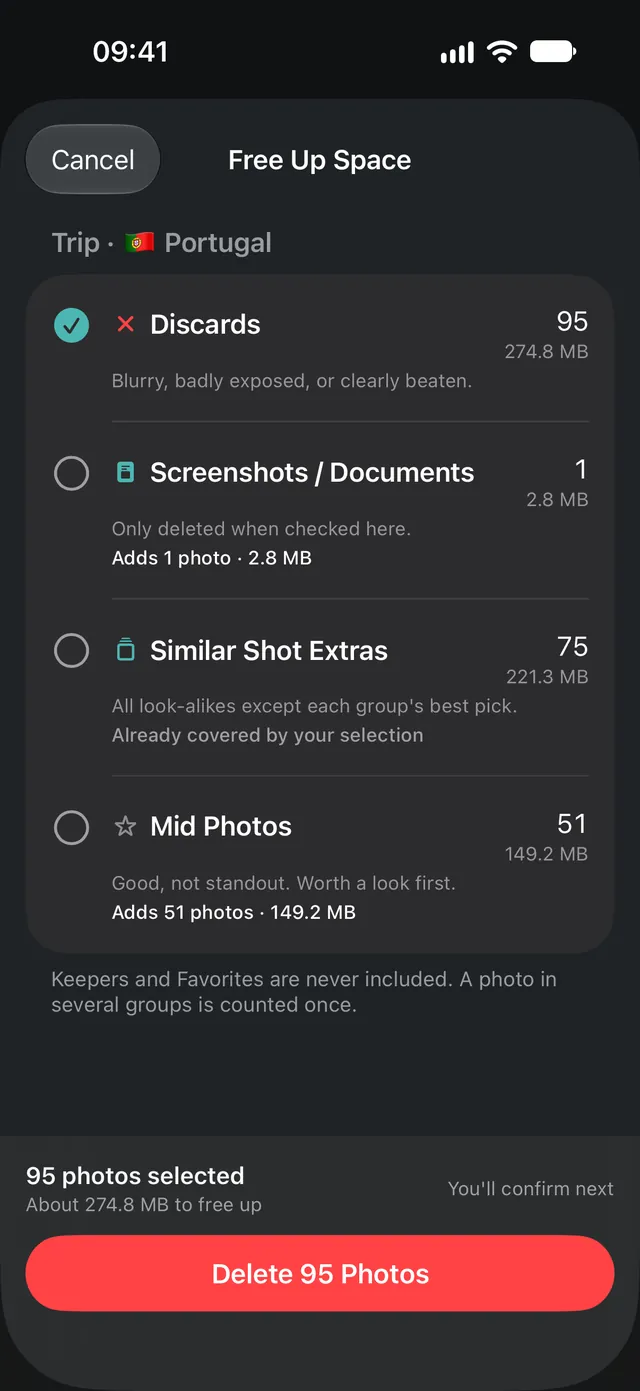
Nothing is deleted until you confirm, Keepers and Favorites are never included, and deleted photos usually stay in Recently Deleted for 30 days. With iCloud Photos on, a deletion also applies to your other devices, and to everyone's library if the photo is in a Shared Library. If you're trimming to free up iPhone storage from photos, empty Recently Deleted once you're sure: until then, those photos still take up space.
Tips for better trip albums
- Heart your must-keep shots first. Any photo marked as a Favorite in Photos is always a Keeper, so it's always in the album.
- Let the Camera use your location. Photos without location data can't be placed in a trip (Settings → Privacy & Security → Location Services → Camera).
- One album per trip. Suggested names follow the trip, like “Best of Spain → France 2026” for a trip across two countries.
Everything here runs on your iPhone, including working out which countries you visited. There's no account, and your photos and locations are never uploaded.
Next: when it's just a handful of takes of one moment, here's how to pick the best photo on iPhone from a set of similar shots.
Questions, answered
How does Gallery Audit know where I traveled?
It uses each photo's location and date. The area where you took photos on the most days in the scanned range counts as home, and every stretch of days away becomes a trip, even one across several countries. Days in another region of your own country count too, as domestic trips. Countries and regions are worked out on your iPhone from a built-in map of borders.
Does creating an album copy my photos or use more storage?
No. An album in Photos only points to photos that are already in your library. Nothing is copied, moved or deleted, and deleting the album later doesn't delete its photos.
What happens to photos without location data?
Photos without location data can't be placed in a trip, but they're still rated and grouped with similar shots like every other photo. For the best trip detection, scan a range that includes plenty of time at home.
Can I trim one trip without touching the rest of my library?
Yes. With a trip selected, Free Up Space only covers that trip's photos, so it never deletes anything outside it. Nothing is deleted until you confirm, and deleted photos usually stay in Recently Deleted for 30 days.
Keep reading

How to pick the best photo on iPhone from a set of similar shots
Took 20 shots to get one good one? How to pick the best photo on iPhone fast, from portraits and Instagram shots to landscapes, and clear the rest.
How to delete similar photos on iPhone, and keep the best one
Delete similar photos on iPhone without checking each one. Find bursts and look-alike shots, keep the best of every moment and clear the rest.
iPhone storage full? How to free up space from your photos
iPhone storage full of photos? See what's using the space, clear blurry shots and near-duplicates in one go, and decide what stays before anything goes.