How to delete similar photos on iPhone, and keep the best one
12 photos of the same view? Here's how to find every burst and look-alike shot in your camera roll, keep the best of each, and delete the rest without going through them one by one.
Short answer: The Duplicates album in Photos only merges exact copies, so different frames of the same moment stay. To delete similar photos on iPhone, keep the best one or two shots of each moment and clear the rest, by hand or with Gallery Audit, which groups the look-alikes and picks the best of each for you to confirm.
You stop at a viewpoint, take a photo, then another to be safe, then a few more because someone blinked. Do that for a year and a big part of your camera roll is near-identical frames. If you've tried to delete similar photos on iPhone by hand, you know how slow it is: open each one, compare, squint, repeat.
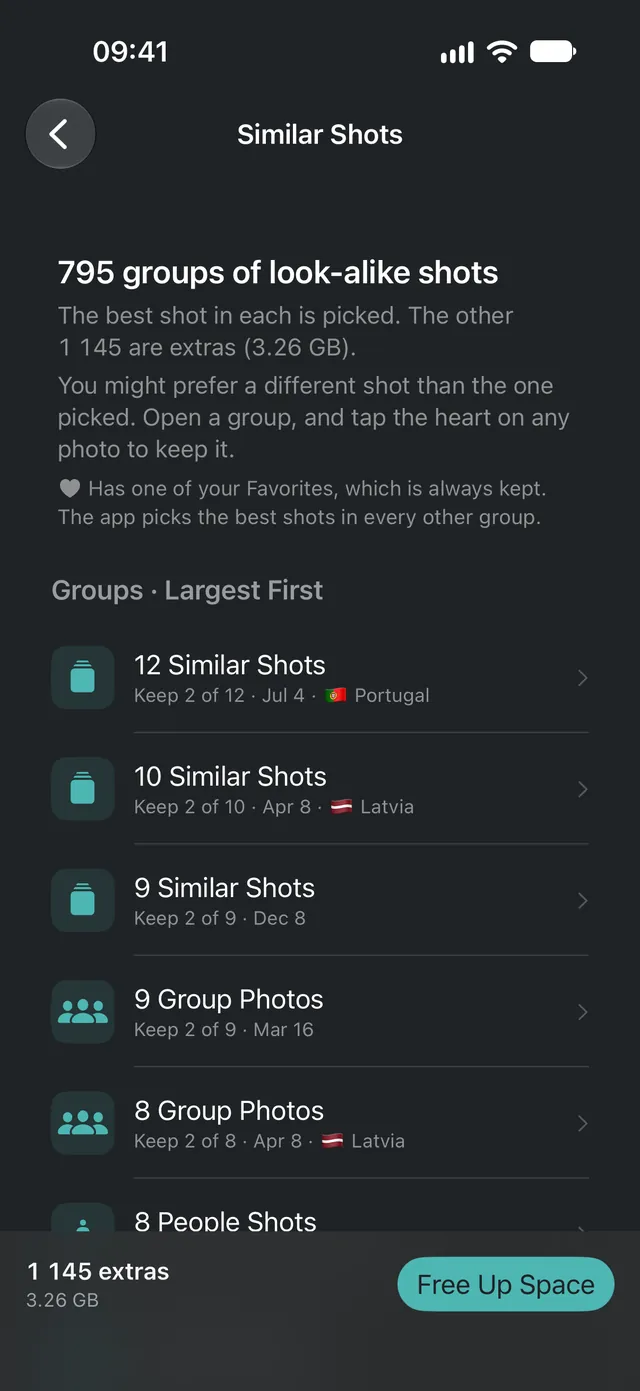
We scanned one demo iPhone library, a single year of 5,009 photos. Gallery Audit found 795 groups of similar shots, and 1,145 of those photos were extras: near-copies of a better shot of the same moment. Together they took up 3.26 GB. If your iPhone storage is full of photos, this is a good place to start.
- Photos scanned (one year)
- 5,009
- Groups of similar shots
- 795
- Extras flagged
- 1,145
- Space the extras used
- 3.26 GB
The screenshots in this guide come from a demo library. Sample photos are AI-generated.
Why your iPhone fills up with similar photos
Near-duplicates are rarely a mistake. Burst mode fires off a dozen frames in a second. Group photos get retaken until everyone's eyes are open. Sunsets, mountain views and pets get shot again and again, because the next one might be better. Each of those is a full-size photo: in the library above, the extras averaged about 2.9 MB each.
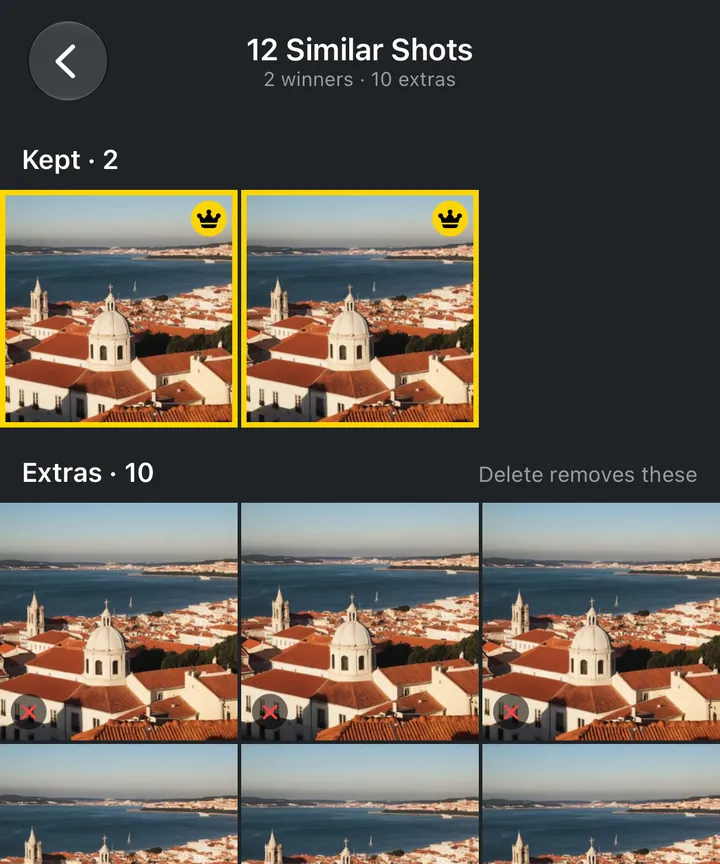
Trips are the worst for it. In that same library, a single viewpoint produced a group of 12 near-identical shots, and the week-long Portugal trip came to 747 photos. (Here's how to save the best photos from a trip into an album.)
The hard part isn't deleting. It's choosing. Picking the best of twelve almost identical frames on a phone screen takes real attention, and doing it for hundreds of moments takes evenings.
What the iPhone Duplicates album does, and what it misses
Photos has a built-in Duplicates album, under Utilities. It finds copies of the same image, such as a photo saved twice or the same picture at a different size or format, and lets you merge them. It's worth running, and it's free:
- Open Photos, tap Collections and scroll to Utilities.
- Tap Duplicates. Each set shows the copies Photos found.
- Tap Merge on a set and confirm. Photos keeps the highest-quality version, with the details from every copy, and moves the rest to Recently Deleted.
No Duplicates album? It only appears once your iPhone has indexed the library and found copies, which can take a few days on a big library (Apple's guide).
But twelve different frames of the same view aren't duplicates to Photos, because each one is a slightly different picture. That's where most of the clutter is, and the Duplicates album leaves it alone. Bursts get only half the help: iPhone stacks them and suggests a key photo, but choosing which frames to keep is still up to you, one burst at a time.
How to find and delete similar photos with Gallery Audit
Gallery Audit is an iPhone photo cleaner that does the choosing for you. It finds every group of look-alike shots in your library, picks the best ones, and lets you clear the rest in one go. It isn't on the App Store yet (it's coming soon), but here's the whole flow.
- Pick a date range and start the audit. Choose All Time, Last Year or any span you drag across the timeline, down to the day, then tap the Audit button, which shows how many photos are in the range. Everything runs on your iPhone.
- Similar shots are grouped. Bursts are grouped automatically. Other photos taken up to a few minutes apart are compared visually and grouped when they match.
- The best shots are picked. How many are kept depends on the group's size: the best one for up to 6 shots, the best two for 7 to 12, and the best three for 13 or more. Any photo you've hearted is kept as well, even past that. The rest become extras.
- Review in Similar Shots. Every group is listed, largest first, and named for what's in it, like “12 Similar Shots” or “9 Group Photos”, with the date and, on a trip, the country. Open any group to see what's kept and what's an extra, and tap the heart on any photo to keep it instead.
- Delete the extras. Clear every extra in one go with Free Up Space, or open a group and delete just its extras. Nothing is deleted until you confirm, and deleted photos usually go to Recently Deleted for 30 days. The free version deletes up to 50 at a time (50 to start, then 20 more each day), and Gallery Audit Pro clears as many as you tick.
How it picks the best shot
A good selfie and a good landscape fail in different ways, so Gallery Audit first works out what each photo is: a selfie, portrait, group shot, person, close-up or landscape. Then it checks sharpness, exposure, faces, composition, level horizons and even lens smudges, and rates overall appeal with Apple's aesthetics model on your iPhone's Neural Engine.
Sharpness is measured on the subject, not the whole frame, so a portrait with a soft background isn't treated as blurry. And two rules always win over the score: photos you've marked as Favorites stay as winners, and the frame iPhone chose as the best of a burst is never marked Discard.
Being an extra doesn't automatically mean Discard, either. A decent shot that lost to a better twin is usually rated Mid, and it's only cleared if you choose to clear extras or Mid photos in Free Up Space.

Before you delete near-duplicate photos
- You review first. Every group shows its picks before anything is deleted, and nothing goes until you confirm.
- Usually 30 days to recover. Deleted photos go to Recently Deleted in Photos, where you can recover them for 30 days (if your iCloud storage is full, iOS deletes them right away).
- Favorites are protected. Any photo you've hearted in Photos is always a Keeper.
- iCloud syncs deletions. With iCloud Photos on, a photo you delete is also removed from your other devices, and from everyone's library if it's in a Shared Library.
- Private by design. The analysis is on-device AI: no account, no uploads.
Similar-shot extras are one of four things Free Up Space can clear. Next, see how they add up with blurry shots, screenshots and Mid photos when you free up iPhone storage from your photos.
Questions, answered
Does the iPhone Duplicates album find similar photos?
Only copies of the same image, like a photo saved twice or the same picture in a different size or format. Several different frames of the same moment aren't duplicates to Photos, so they stay. Gallery Audit groups those look-alike shots and picks the best of each group.
How does Gallery Audit choose the best photo in a group?
It scores every shot for sharpness, exposure, faces, composition and lens smudges, plus Apple's on-device aesthetics model, and it judges sharpness on the subject, so portrait-mode background blur doesn't count against a photo. Photos you've marked as Favorites always stay as winners.
Will it delete my burst photos automatically?
No. Bursts are grouped and shown like any other group, the frame iPhone picked as the best of a burst is never marked Discard, and nothing is deleted until you choose what to clear and confirm.
Are my photos uploaded to find similar shots?
No. All the analysis runs on your iPhone. There's no account, and your photos never leave your phone.
Keep reading
iPhone storage full? How to free up space from your photos
iPhone storage full of photos? See what's using the space, clear blurry shots and near-duplicates in one go, and decide what stays before anything goes.
How to save the best photos from a trip into an iPhone album
747 photos from one trip? How to find the best trip photos on iPhone, trim the weak shots and save the highlights as an album in Photos.
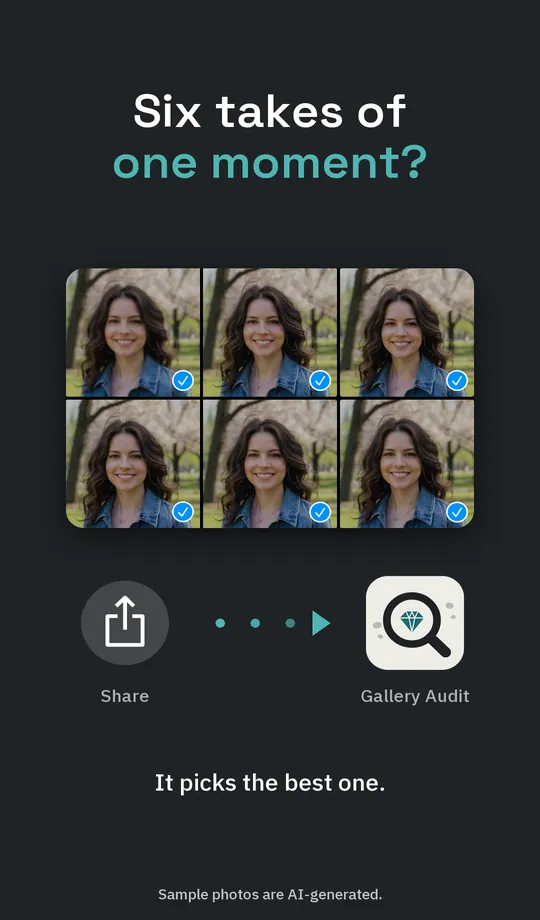
How to pick the best photo on iPhone from a set of similar shots
Took 20 shots to get one good one? How to pick the best photo on iPhone fast, from portraits and Instagram shots to landscapes, and clear the rest.